Features
Process inspection (services lens)
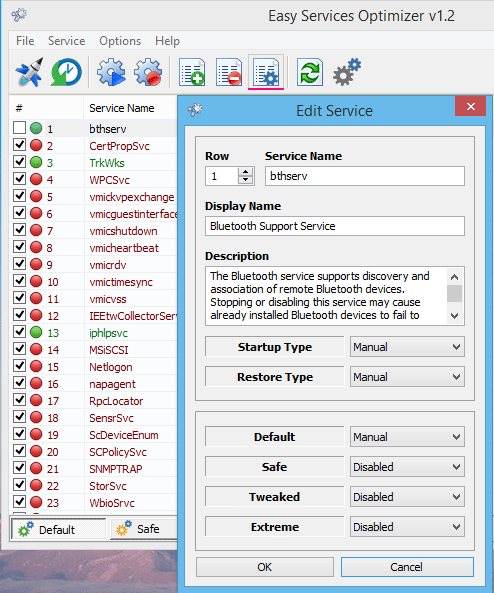
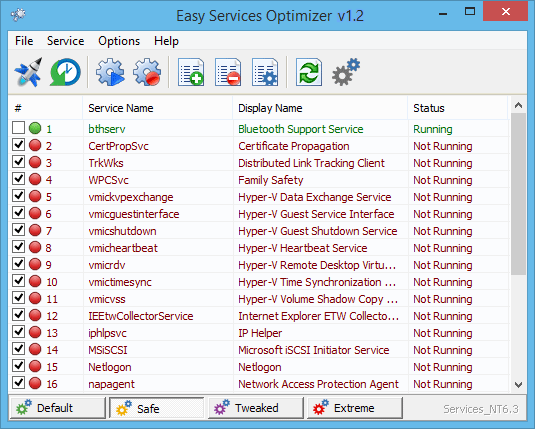
ESO is not a thread-level debugger, but it gives you a clear services inspection view: which optimizable services are in the list, what startup type you are aiming for, and what will change when you apply a preset. For handles and DLLs, use Process Explorer or Process Hacker after you save your baseline service states.
- Start, stop, and restart supported services where the build allows—validate outcomes in your monitor of choice.
- Add, edit, or remove entries from the optimization list without deleting binaries; removing a row is a scope decision, not file destruction.
System monitoring alignment
Great performance work is measurable. After applying a preset, use your preferred system monitor to confirm reduced background CPU, fewer periodic wakeups, and stable disk idle times. ESO’s value is concentrated in services; if problems persist, your next signal is almost always process-level.
That is why the comparison table names Task Manager-style tools: they answer different questions than batch service presets.
Validation checklist →Task Manager alternative? Only in scope.
If your goal is “kill runaway tab,” use Task Manager or a process tool. If your goal is “reduce always-on services on a constrained endpoint,” ESO is closer to the problem statement—especially when paired with Resource Monitor for disk/network attribution.
Process Hacker and Process Explorer
Process Hacker and Process Explorer answer “which thread is hot?” ESO answers “which always-on service can be relaxed safely on this machine class?” Use both lenses; they reinforce each other when changes are staged, measured, and reversible.
Advanced permissions and safety boundaries
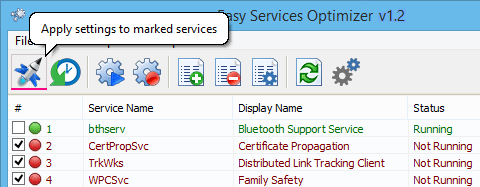
Service changes can require elevation. UAC exists to separate casual browsing from machine-wide changes. ESO is built around clear impact: curated lists, an explicit Apply step, and reset paths—so elevated sessions are not a pile of mystery clicks.
Read the ethical usage statement →Performance insights (what to expect)
On low-resource PCs, reducing unnecessary services can improve responsiveness—especially when background maintenance tasks contend for disk and CPU. Gains vary by workload; the responsible claim is not “2× faster,” but “fewer avoidable background obligations,” which often shows up as smoother idle behavior and fewer surprise spikes in your system monitor timelines.
- Measure before/after with fixed workloads (boot time, compile, game launch, VM start).
- Watch for network-dependent features (updates, shared printing, Bluetooth accessories).
List portability, exports, and “plugin-like” workflows
Instead of a proprietary plugin runtime, ESO emphasizes portable expertise: save lists, reopen them, export artifacts, and—where supported—invoke command-line flows for repeatable admin operations. That is the practical extensibility model for many trusted sysinternals-style utilities.
Download integrity checklist →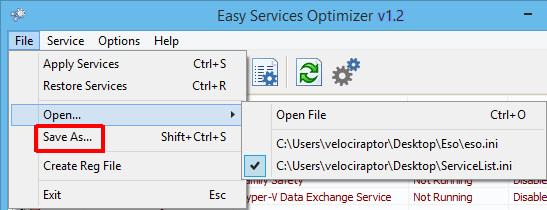
Automation panel (where supported)
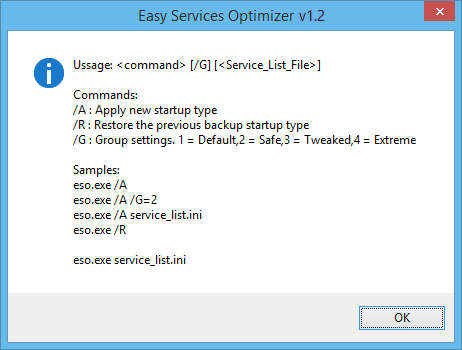
Always confirm switches against the build you ship internally; CLI surfaces change more frequently than GUI copy.